Clock

31 July, 2011

Freemake Video Converter and Video Downloader Free Download


Download videos and convert videos in AVI, FLV, WMV, MP4, 3GP, MPG, SWF, MP3, DVD, MKV and many other video audio formats, absolutely free. This is a bundle of two software which impressed me a lot. After much time we saw such an amazing freeware which is all in one video converter and video downloader. Both software are user friendly and easy to use. The interface is amazing. Great software. Must have. Download Freemake Video Converter and Freemake Video Downloader.

Free Make Video Downloader

Download video free from YouTube, Facebook, MTV, Vevo, TubePlus, Metacafe, Dailymotion, Vimeo, Megavideo, ComedyCentral, Break, 50+ sites with Free Video Downloader. Video Downloader from Freemake is absolutely free, designed without any time limitations or any hidden costs. Extract original audio fromYouTube videos. Download videos from FaceBook, Google videos, mega video, the daily show, daily motion, my video, comedy central, youtube, mtv, metacafe, stupid videos, veoh, vimeo and more. Enable automatic video download mode.


Set batch parameters for quality, action (download/ extract/ convert), destination and YouTube downloader will download video in accordance with your saved settings. Video downloader converts video during download process. Convert video directly to AVI, MKV, 3GP, MP3, iPod, iPhone, iPad, PSP, Android. Use ready-made intuitive profiles for portable devices.

video downloader

Download YouTube video in 4K 4096p, HD 1080p, HD 720p, 480p, 360p, 240p. Freemake Video Downloader lets you set the quality for downloadable video. Download YouTube RTMP, YouTube private & YouTube videos embedded into sites. All RTMP streams are supported.

Freemake Video Converter
Convert video free to AVI, MP4, WMV, MKV, SWF, FLV, 3GP, MPEG, DVD, Blu-ray, MP3, iPod, iPhone, iPad, PSP, PS3, Android, YouTube, and more with Free Video Converter. Input any video files: AVI, MP4, MKV, WMV, MPG, 3GP, 3G2, SWF, FLV, TOD, AVCHD, MOV, DV, RM, QT, TS, MTS, etc. Import music (MP3, AAC, WMA, WAV), and photos (JPG, BMP, PNG,GIF) to turn them into video free and easily! Convert Online Videos Directly from 50+ Sites. Convert video free to the most popular video formats. Rip DVD movie (unprotected) to AVI, WMV, MP4, MPEG, MKV, FLV, SWF, 3GP.
video converter
Convert video to Flash and embed it directly to your web page. Convert video and audio files to MP3 with free video converter. Convert Free to iPod, iPhone, iPad, PSP, PS3, Android. Freemake is the only free video converter that features integrated both CUDA and DXVA technologies for the fastest ever video conversion and less CPU usage. The software automatically detects the optimal conversion parameters and switches on/off CUDA and DXVA for better conversion results.

Convert your movies to video Blu-ray format and burn high-quality BDs for free. Create Blu-ray discs out of any input content: video, audio, photos, URLs. Burn multiple Blu-ray copies and save the resulted Blu-ray video to HDD as an ISO image or Blu-ray folder.
Unlike other software, free video converter doesn’t have a two-hour limit and can burn video DVD up to 20h to a Standard DVD or 40h to DVD-DL. With free video converter, you can make multiple DVD copies and save the output DVD video to your PC as an ISO image or DVD folder.
Convert DVD, MKV, MOV with embedded subtitles to any video format or device for free. Add SSA/SRT/ASS external subtitles to any video with our free video converter.
Take total control of the output result by customizing conversion parameters. Create your own presets by establishing video and audio codecs, frame size, etc. Choose an icon, and save you custom preset for further usage with our free video converter.
You can even make cool slideshows and presentations using it. Cut, Join, Rotate, Limit size, Adjust to aspect ratio and more. Cut video parts from your file. Flip or rotate video. Join several videos into one file, add transitions between parts. Fit the output file size to any limit (e.g. 700 Mb, 1.4 Gb, 4.7 Gb). Adjust outputvideo to the established aspect ratio: add black bars, stretch, zoom, auto-adjust.

Download Video Downloader and Video Converter
Video Downloader
Video Converter
Homepage


Thanx and Enjoy...

Better Safe than Sorry – How to Be Secure on The Web


Unfortunately, technological advancement has brought with it increased security issues. An alarming amount of identity theft is being conducted globally, resulting in sensitive data being stolen and even financial accounts being accessed. The ingenuity of cyber criminals and hackers seems to keep pace with the evolving security measures implemented by organizations and built into computers, laptops and phones. Here are a few ways to safeguard your privacy.


Choosing Passwords

Our PCs, laptops and phones all require passwords to be entered, as do many of the websites we visit each day, including our social media profiles. Naturally, many find the sheer number of passwords that need to be remembered a challenge, but it is essential that you create a different and difficult password for each site you use. A cyber criminal gaining access to one of your accounts will easily access your other sites if you use the same password. Don’t present them with the opportunity, create and memorize different passwords for different accounts.

Sharing Personal Information

It is extremely important to reduce the amount of personal information you provide on websites, but particularly on social media networking sites, which are scanned by some hackers for clues to passwords or for enough personal data, such as job details, date of birth, family members and personal history, to create a credible fake version of you and steal your identity. Criminals are very cunning, providing a large amount of your personal data simply opens the door to them. When using internet banking sites and social media sign in pages it is crucial that you check the page is legitimate, as many cyber criminals are fabricating authentic looking sign in pages to steal passwords. If unsure, close it down.

Be Careful in Choosing Websites

The dangers of identity theft can be reduced by only visiting sites you know to be reputable. Many anti-virus packages scan the site beforehand and give a security rating by the side of the site before it is entered. There really is no substitute for high quality anti-virus software, so make sure you purchase it and install it on all your devices. Never give any kind of personal details to a site you don’t trust. Likewise, if you must purchase goods online, always ensure the website has adequate encryption enabled. Your web browser should inform you that the website is using secure SSL encryption to protect your personal data, look for the green padlock icon. PayPal is also an excellent way to make payments, as your credit card details are not shared with the other party.

Extra Web Security – Secure Connection – HTTPS

It is also possible to encrypt your Facebook sessions. Firstly, encrypt your login by setting your Facebook bookmark to https://www.facebook.com, this will ensure your username and password will always be encrypted. To encrypt your Facebook sessions, simply go to the “Account” menu, select “Account Settings” and scroll down to “Account Security” before clicking on “Change”. Now simply check the box that reads “Browse Facebook on a secure connection (https) whenever possible”. It pays to be as secure as possible, even when social networking.

Security Over Mobile Phone

Mobile phone technology has advanced to the point where we now use them to browse the internet, send emails and organize our daily schedules. This means that a huge amount of personal data is held on our tiny handsets. Again, make a unique and difficult password for your phone and download available anti-virus software immediately. Any text or file sent to you by an unknown sender should be rejected without opening and Bluetooth should also be disabled when not being used as this can be used by hackers to access your personal information.
Follow above mentioned simple guidelines to safeguard your privacy and stay secure.
Author: This article was provided on behalf of Broadband Choices; your first stop for broadband comparison.

Thanx and Enjoy..............

28 July, 2011

Top 5 Best Browsers Which Never Crash

Now a days people are facing lot of problems with there browsers, as they often crash while working on something important. No matter how lite the browser may be, people still find difficulties in using them with peace. I am not a rebel of Google Chrome and Mozilla Firefox, i still support them a lot. But some things must be changed accordingly, when we are progressing in technology and life. The reason to write this post is, many people have complained me that there browser will often crash when they open some thing flashy or while using more number of tabs and applications.They always ask me which is the best browser which never crashes when they are on serious work. So i have decided to make a list of browsers which never crashes so often. This list is my own custom made report, i have tested each and every browser very carefully and noted there working capability by putting a lot of stress on each of the individual browser while working and to my surprise the results were quite amazing and now i will present the top 5 browsers whom you can trust to work for hours without any problems.

First let me make clear that this is my own custom report, This was tested was conducted on the basis of a common user who spends 18hrs a day in browsing like me.So the list goes like this..

Browser’s Which Never Crash Often : 

1) Opera 11 : The new Opera 11 is really awesome and lightning fast as they say.You can feel the browser very lite and very fast if you have already used it. The browser works really fast and i have opened approximately 50 to 60 tabs at a time and believe me it never crashed even once from a week. I tried to put as much pressure as i can to the browser. But Opera 11 has really was designed so strong that i can assure you that Opera 11 will never crash when you browse for long hours. If you want to download this beauty. Click the below image, so that you can get a direct download link. Size : 7.12mb

2) Maxthon 3.0 : This is a wonderful browser which never crashed even a single time when i was browsing. Though this browser is not that flexible and light as Google chrome, but the work and interface of this browser is pretty awesome. The best part of this browser is that it has a two modes of browsing , one is the Ultra mode and other is Retro mode. Size : 17.27mb

3) Safari 5.0.3 :  I agree that apple safari is not that lite as the other browsers are, but as per my testing and report this browser never crashes when we open large number of tabs and high graphic pages which load slow. I have used this browser for 1 whole week to test how strong it is, and now its in top 3 place of my list. If you have a good performance system and a good connection, i prefer going with safari as the browser will make a rich and new experience when we browse. Size : 34.63mb
4) Internet Explorer 8 : Internet Explorer which is the most trusted browser of all over the globe is very impressive with its functionality and resistance. The browser will not crash very often and its really secured browser where you can do your work without any problems. The new IE 9 is also extremely impressive and easy to use. As per some surveys 40% of people trust IE 8 as there main browser and i certainly go with them. Size : 16.1 mb
 
5) Mozilla Firefox : I know people love Mozilla Firefox. Basically i love Firefox browser a lot. But while coming to the testing part as i said earlier, Mozilla couldn’t be able to take more than 30 tabs at a time and suddenly it began to take all of the system resources in CPU usage and was crashing horribly. Inspite of regular updates from Mozilla Firefox i still believe they have to work hard on the new Mozilla Firefox 4.0 Beta. I personally don’t prefer a Beta version to work. I cant take my browser crashing all times when i am working seriously. Size :8.18 mb
   
You may be surprised that why your favorite browser’s are not in the list. The main reason for that it really doesn’t matter how fast the browser is, The only thing which people want is a safe and a crash proof system in the browser which allow them to work happily. The post may not be scientifically very correct and strong, but this post was written after testing each and every browser for one complete week and also asking various people that which is the best browser which they feel that it will not crash when we are busy using various tabs.

Thanx.........and Enjoy

The Simplest Way To Get Back Your Old Facebook Chat Instantly

Hey friends, we know about the new facebook chat update lately, its irritating, even you know that for sure. I have been searching for the solution to get back to my good old facebook chat, but kinda ran out of luck on facebook help. They didn’t have any solution to it. It was the new upgrade, we can’t do anything about it, unless you can actually bypass the facebook JavaScript source and replace the new source code with the old one. And how do you do that? You guessed it, well if you didn’t, the solution is Grease Monkey (It’s an add-on for Firefox, I use Firefox ). After using the script, I’m finally happy to get my good old facebook chat back and now I can see all my friends online and don’t have any useless live feed on my sidebar. I’m pretty happy, and for people like me who want to get back to their old facebook chat, here’s the solution, I’m gonna help you out.

If you use Firefox, follow these steps.
Step 1 : Install the Grease Monkey plugin from here
Step 2: After your done with installing the Grease Monkey, install the script from here
And your done,refresh your page or restart your browser and your back to the good old facebook.
 

If you use Google Chrome, follow simple step below. Its pretty much the same process as in Firefox.
Step 1: Install the script for your browser from here

Step 2 : Refresh your page or restart your browser and your back to the good old facebook.
And yeah, that’s it, your done, refresh your page and your back to your old facebook chat. Get back to me if you have any queries..(you can comment on the post to ask your queries)..........

Thanx..and ENjoy!!!!


27 July, 2011

8 Ways to Access Blocked Sites Categories

Businesses are much more clever now: they see how popular the web and social networking is and often block those sites from employee access. Not only are work places doing this, but so are schools, colleges, even some libraries and churches. If you want to access your social networking profiles, email or blogs from one of these locations, it can be frustrating. At a company that does live chat customer support software that I work for we needed to access our tools from all over the world and it was very difficult. Also we all know that it’s really hard to stay away from these sites for 8-9 hours a day while at work or school; so here are 8 methods you can use to access these blocked sites.

Proxy Servers

Proxies are the most popular method of accessing blocked websites because they can bypass network restrictions. They help protect your privacy by letting you surf anonymously and securely. The connections are encrypted and help to prevent monitoring on your network, so it will never be traced back to you. Best of all they’re very simple to use: enter your URL and check/uncheck a few specifications and you’ll be surfing within seconds.

Examples: Hide My Ass, Proxify, Rocketsurf, Web Proxy, Orkut.pk, BackFox.

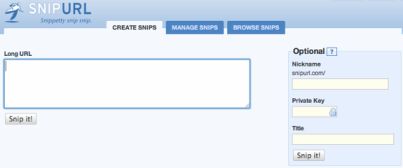
Short URL

Sometimes converting the domain you’re trying to access to a short URL might work. More than likely the short URL service will not banned or blocked from your network and you’ll have no problems accessing it. However, if the short URL redirects back to the domain you’re trying to access, then you still won’t be able to access it.


Examples: bit.ly, TinyURL, is.gd, SnipURL.

Google Cache

Most search engines have a cached version of a web page. These are stored versions from the past. What Google does is take a snapshot of each web page and then stores it as a backup. It won’t be the most recent version, but it should be good enough until you can access the actual page later from your own personal computer.
You can access a cached version by clicking on the “cached” link from search results, or using the Google cache search operator (cache:www.domain.com) – where domain.com is the actual blocked domain that you want to access.


Receive by Email

With a services like Web2Mail Lite, you can access any web page right from your email account. To request an instant delivery of any web page, simply send an email to www@web2mail.com. Be sure to enter the URL address of the web page you want to receive in the subject of your message. You’ll usually receive a reply within 5 minutes.

View as a PDF

With PDFmyURL you can view any web page as a PDF file. Just enter the URL and you’ll get an instant document to download. They also have a bookmarklet that you can add to your browser bookmarks bar so that you can easily convert any web page you’re viewing to a PDF file.

Translation Services

Translation services allow you to translate a web page from one language to another, but where the catch comes in is that the translated page is displayed on their own server. You can re-translate any page, even if you don’t need to. You just want the services to fetch the content and display it as a page on their own domain. The downside is that it may not work for all websites and it sometimes strips all of the styling from the page that it translates.

Examples: Google Translate, Yahoo! Babel Fish, SDL FreeTranslation, Tolingo.

Subscribe to RSS Feed

Most websites now support RSS feeds, which is great because you can subscribe to them in a feed reader or by email. This comes in handy because you don’t have to access the actual website in order to view the content (updates, new articles, etc.) There are even some social networks that now support RSS feeds, so you can subscribe to updates from your friends and view them within your reader or by email.

Examples: Google Reader, Feedingo, Bloglines, NewsBlur, FeedMyInbox, FeedBlitz.

Google Mobile Version

You can use Google mobile to access a mobile optimized version of most websites. It displays the normal HTML pages as if you were viewing them on a mobile device and also removes any JavaScript and CSS scripts. It also breaks longer pages into several smaller pages for you.

To get the mobile version of a web page, enter www.google.com/gwt/n?u=domain.com into the address bar – where domain.com is the blocked domain that you want to access. Alternately, you can also use a service like Mowser to get the mobilized version of a web page.
These methods may not work for everyone or for every website; it will take some trial and error to figure out which methods are effective. Just be careful as some of these methods may put you at risk for breaching company regulations.
Everyone has their own preference when it comes to accessing blocked sites.This article is only for knowing purpose please do not misuse the tricks..other wise we are not responsible...

Thanx and Enjoy...